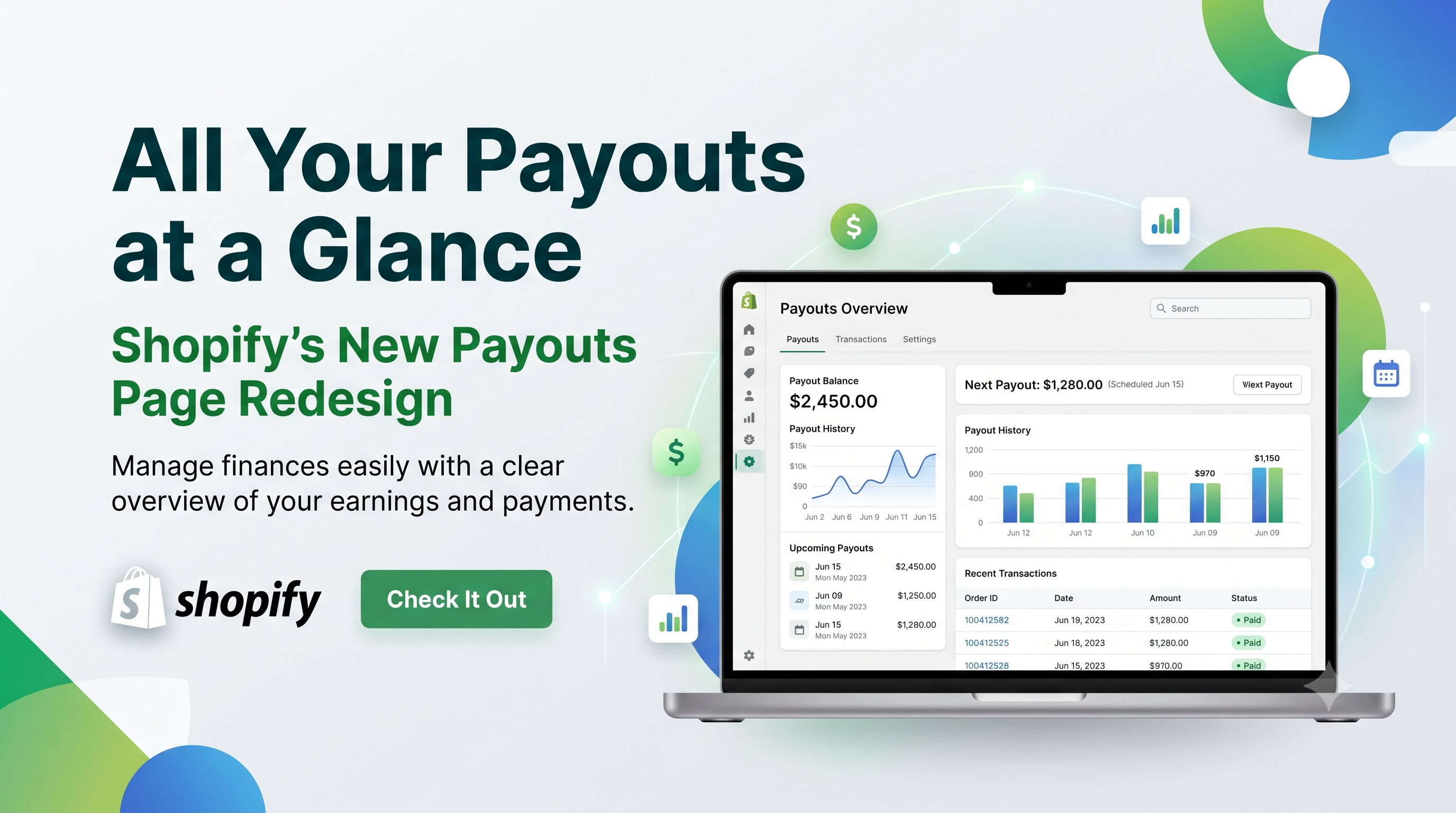
Shopify just rolled out a visual refresh to the Payouts page in the admin, and the change is more than cosmetic. Instead of hopping between list and detail views, merchants now see a full list of payouts on the left and the selected payout’s details on the right—all on the same screen. This redesign aims to cut down the “back‑and‑forth” clicks that can slow down financial reconciliations, especially for high‑volume stores. In this post we break down exactly what’s new, who needs to pay attention, and the concrete steps you should take to make the transition seamless.
What’s Changing on the Payouts Page
The new layout introduces a persistent vertical list of all payouts on the left side of the screen. Clicking any entry instantly swaps the details pane on the right, keeping the list in place. The design works on both desktop and mobile browsers, with the list collapsing into a swipe‑able carousel on smaller screens. Key visual tweaks include:
The rollout is gradual, but once you see the two‑panel view in your admin, you’re on the new experience. There’s no new URL or navigation path to learn—just a different arrangement of existing data.
Who’s Affected: Merchants vs. Developers
Merchants – The redesign is purely front‑end, so everyday store owners get an immediate productivity boost. No settings need to be toggled, and there’s no impact on payout calculations or timing.
Developers – If you’ve built custom apps or scripts that scrape the old payouts page, embed its URL, or rely on the DOM structure for automation, you’ll need to verify that those integrations still work. The underlying API endpoints remain unchanged, so any server‑side calls (e.g., GraphQL or REST) continue to function as before. The main adjustment is to any front‑end code that parses the page HTML for elements like “.payout‑list” or “.payout‑detail”. Those selectors have been renamed to “.payouts‑sidebar” and “.payout‑detail‑panel”. Updating those selectors will keep your tools running smoothly.
Actionable Steps for Merchants
Developer Considerations and API Impact
The payout data you retrieve through the Admin API hasn’t changed. You can continue using the same GraphQL query to list payouts, filter by status, or pull transaction IDs. Below is a minimal query you might already have in a finance‑dashboard app:
graphql
query GetPayouts($first: Int = 20) {
payouts(first: $first) {
edges {
node {
id
amount {
amount
currencyCode
}
status
processedAt
reference
}
}
}
}
If you have front‑end scripts that scrape the payouts page for quick reports, update the CSS selectors as follows:
javascript
// Old selector example
const rows = document.querySelectorAll('.payout-list .row');
// Updated selector for the new UI
const rows = document.querySelectorAll('.payouts-sidebar .payout-row');
No authentication changes, rate‑limit adjustments, or webhook payloads were introduced, so you can deploy the same code to production without additional testing—aside from the selector tweak if you rely on the UI.
Testing the New View and Providing Feedback
Shopify rolls out the redesign in phases. To verify you’re on the new version, look for the URL pattern “/admin/payouts?view=grid” and the two‑panel layout. If you’re still on the legacy view, you’ll see a single‑column list with a “View Details” button that redirects to a separate page. In that case, simply clear your browser cache or try an incognito window; the new UI may be waiting for your account to be included in the rollout.
When you encounter glitches—missing rows, truncated amounts, or broken download links—use the built‑in “Report an issue” link at the bottom of the page. Include a screenshot, your store ID, and a brief description. Shopify’s product team monitors these reports and often accelerates fixes for high‑traffic merchants.
Conclusion & Next Steps
The Payouts page redesign is a modest but impactful upgrade that saves merchants time and reduces navigation friction. For developers, the change is a front‑end housekeeping task—update selectors if you scrape the page, but keep your API logic untouched. Take a few minutes this week to explore the new layout, adjust any internal guides, and share feedback with Shopify. Doing so ensures a smoother experience for your finance team and keeps your custom tooling running flawlessly.
Ready to dive in? Log into your Shopify admin, open the Payouts section, and experience the side‑by‑side view for yourself. If you have questions or need help updating your custom scripts, reach out in the Shopify Community forums or drop a comment below. Happy selling!