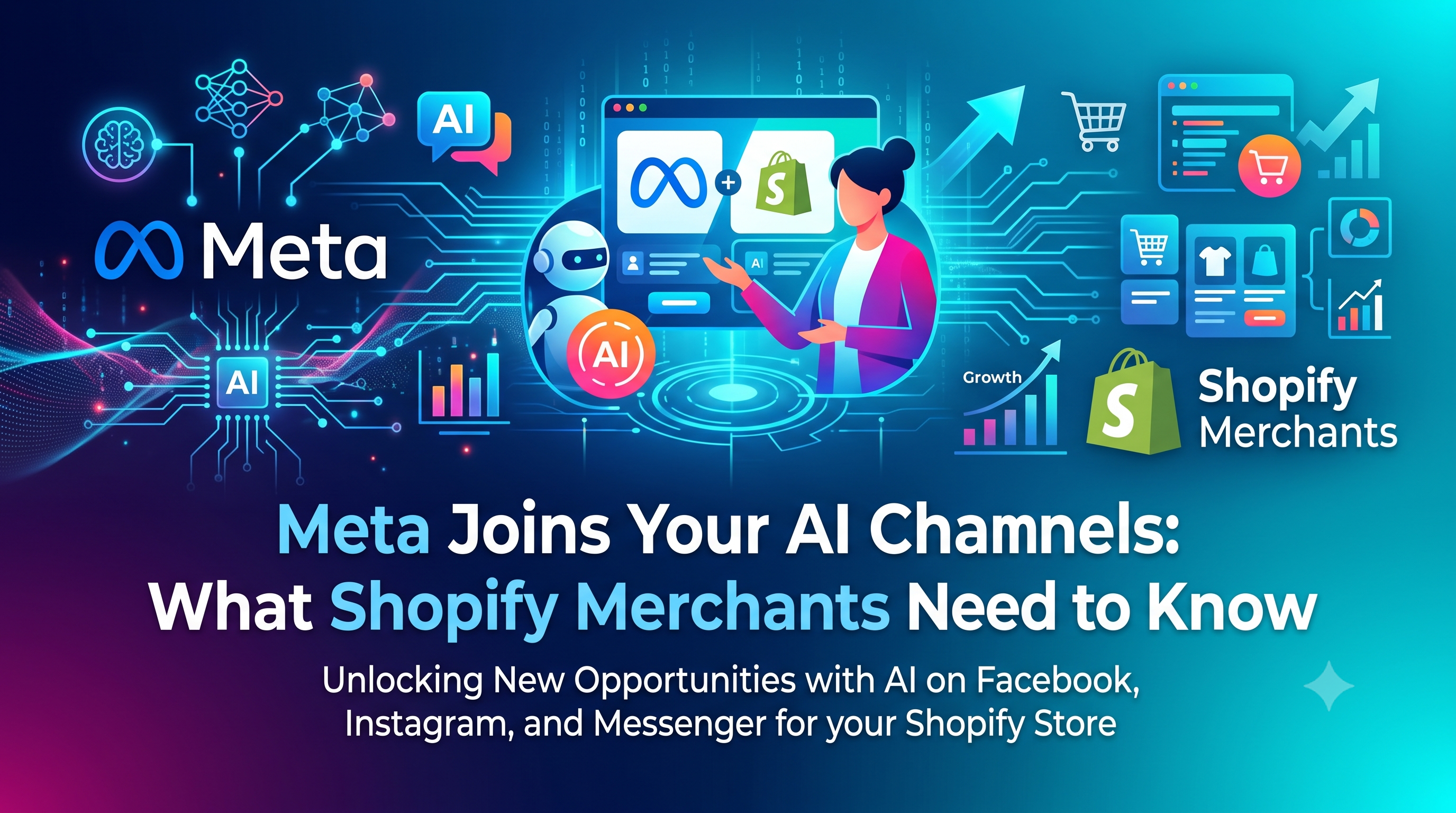
Meta Joins Your AI Channels: What Shopify Merchants Need to Know

Meta is now an AI channel in the Shopify admin, letting merchants sync products, enable direct checkout, and track performance alongside other AI channels. Learn what changed, who’s affected, and the exact steps to configure Meta for your store.

Meta Joins Your AI Channels: What Shopify Merchants Need to Know
7 sections

Shopify’s latest merchant update adds Meta as a first‑class AI channel inside the Agentic Storefronts section of the admin. From now on, Meta appears alongside other AI‑powered channels, automatically shares your catalog, and gives you granular control over checkout and performance reporting. In this post we break down exactly what changed, who it impacts, and the concrete actions you should take today—whether you’re a store owner fine‑tuning your sales funnel or a developer extending the platform with custom integrations.

Why Meta as an AI Channel Matters

Meta (formerly Facebook) continues to be a massive traffic source for ecommerce. By treating Meta as an AI channel, Shopify unifies the experience with other AI‑driven sales avenues like TikTok, Google Shopping, and Amazon. This means merchants get a single dashboard for budget allocation, performance insights, and product sync—reducing the friction of managing multiple ad accounts and catalog feeds.

How the Update Changes the Admin Experience

In the Shopify admin, navigate to Settings → Agentic Storefronts. You’ll now see a “Meta” tile next to existing AI channels. The tile displays three key toggles:

  • Catalog Sync – Enabled by default. Your entire product catalog is pushed to Meta’s catalog system, ready for Dynamic Ads and Shop Now experiences.
  • Direct Checkout – Optional. When turned on, shoppers can complete a purchase without leaving Meta, using Shopify’s checkout flow.
  • Performance Dashboard – Real‑time metrics (impressions, clicks, ROAS) are pulled into the Agentic settings, letting you compare Meta against other AI channels at a glance.
  • Impact on Merchants

    For store owners the change is largely UI‑driven, but there are three immediate actions to take:

  • Review Catalog Access – Even though the sync is auto‑enabled, you may want to limit which products appear on Meta (e.g., exclude out‑of‑stock or high‑margin items). Use the “Exclude from Meta” checkbox on the product edit page or bulk edit via the CSV export.
  • Decide on Direct Checkout – If you already run Meta ads that send users to your site, you might keep this off to preserve your funnel analytics. If you want a frictionless “Shop Now” experience, toggle the Direct Checkout switch and follow the quick setup wizard.
  • Monitor Performance – The new performance tab shows CPM, CPC, and ROAS broken out by campaign type. Set weekly alerts in the admin to catch spend spikes early.
  • Impact on Developers

    Developers building custom apps or integrations need to be aware of two underlying changes:

  • Admin API Exposure – The Meta channel now has a dedicated GraphQL node (agenticChannelMeta) that exposes its configuration. Apps that previously managed catalog sync via the generic catalog endpoint should migrate to the new node to avoid deprecation warnings.
  • Webhook Events – Two new webhook topics are introduced: META_CATALOG_SYNC_COMPLETED and META_CHECKOUT_STATUS_UPDATED. Subscribing to these events lets your app react to catalog errors or checkout conversions in real time.
  • Below is a minimal GraphQL mutation that toggles the Direct Checkout flag for a store. Replace SHOP_ID with the store’s GID and set enabled to true or false as needed.

    graphql

    mutation UpdateMetaChannel($shopId: ID!, $enabled: Boolean!) {

    agenticChannelMetaUpdate(input: {

    shopId: $shopId,

    directCheckoutEnabled: $enabled

    }) {

    agenticChannelMeta {

    id

    directCheckoutEnabled

    }

    userErrors {

    field

    message

    }

    }

    }

    If you prefer a REST‑style payload (e.g., for a webhook proxy), the same setting can be sent as JSON:

    {

    "channel": "meta",

    "catalogSync": true,

    "directCheckout": false

    }

    Step‑by‑Step: Setting Up and Managing Meta

  • Open Agentic Storefronts – Settings → Agentic Storefronts → Meta tile.
  • Check Catalog Sync – Review the product list that Shopify has pushed. Use the bulk edit screen to add the tag meta_exclude to any SKUs you don’t want on Meta.
  • Enable Direct Checkout (Optional) – Click the toggle, follow the two‑step verification, and map your Shopify payment settings to Meta’s checkout flow.
  • Add Webhook Subscriptions – In your custom app, register for META_CATALOG_SYNC_COMPLETED and META_CHECKOUT_STATUS_UPDATED to stay informed of sync health and conversion data.
  • Monitor the Dashboard – Visit the Performance tab daily for the first week. Look for CTR > 2% and ROAS > 1.5× as early success indicators.
  • Iterate – Adjust product exclusions, ad budgets, or checkout settings based on the metrics you see. The unified view makes A/B testing across AI channels trivial.
  • Best Practices & Tips

  • Start Small – Enable Meta for a single collection first. This limits spend while you validate feed quality.
  • Use Custom Labels – Add meta_tag metafields to surface specific promotions in Meta’s dynamic ads.
  • Sync Frequency – By default Shopify updates the Meta catalog every 24 hours. For high‑velocity inventory, schedule a manual sync via the API (agenticChannelMetaSyncNow).
  • Audit Checkout Flow – When Direct Checkout is on, run a test purchase on a mobile device to ensure the Shopify checkout UI renders correctly within Meta’s in‑app browser.
  • Leverage Webhooks – Trigger an internal Slack alert if META_CATALOG_SYNC_COMPLETED returns errors; quick fixes keep ad spend efficient.
  • Conclusion & Next Steps

    Meta’s promotion to an AI channel streamlines catalog management, gives merchants a single performance hub, and opens new checkout possibilities—all without leaving the Shopify admin. Merchants should verify product sync, decide on direct checkout, and start tracking performance today. Developers, on the other hand, need to adopt the new GraphQL node and webhook topics to keep integrations smooth.

    Ready to put Meta to work for your store? Dive into the Agentic Storefronts settings now, enable the channel that fits your strategy, and watch the data roll in. Need help with custom integrations or performance analysis? Reach out to our Shopify Partner team or drop a comment below—we’re happy to guide you through the setup!

    Tags
    Sources

    Related Articles

    Multiple Barcodes per Variant: What Shopify Merchants and Developers Need to Know
    Platform Updates

    Multiple Barcodes per Variant: What Shopify Merchants and Developers Need to Know

    Shopify now lets each product variant hold up to 20 barcodes, simplifying inventory across UPCs, EANs, ASINs, and custom codes. Learn how this change impacts your store, the API, CSV workflows, and the steps to start using it.

    September 8, 20264 min
    Customer Address APIs Add countryCode — What Developers Need to Know
    Platform Updates

    Customer Address APIs Add countryCode — What Developers Need to Know

    Shopify’s Customer Account API now supports a countryCode field for addresses, deprecating territoryCode. Learn what changed, who’s affected, and how to update your apps with actionable code examples.

    September 8, 20264 min
    Shopify Storefronts Now Support UCP 2026‑08‑25 – What Developers Need to Know
    Platform Updates

    Shopify Storefronts Now Support UCP 2026‑08‑25 – What Developers Need to Know

    Shopify’s storefronts now advertise support for the Universal Commerce Protocol version 2026‑08‑25, enabling seamless capability negotiation for platforms and agents. Learn what changed, who’s impacted, and the exact steps you should take.

    September 4, 20263 min
    Staff Can Now View Customers’ Online Carts Directly in Shopify POS
    Platform Updates

    Staff Can Now View Customers’ Online Carts Directly in Shopify POS

    Shopify POS v11.14 now lets authorized staff see an identified customer’s abandoned online cart at checkout. Learn who this impacts, how to enable the permission, and actionable steps to boost in‑store conversions.

    September 3, 20263 min