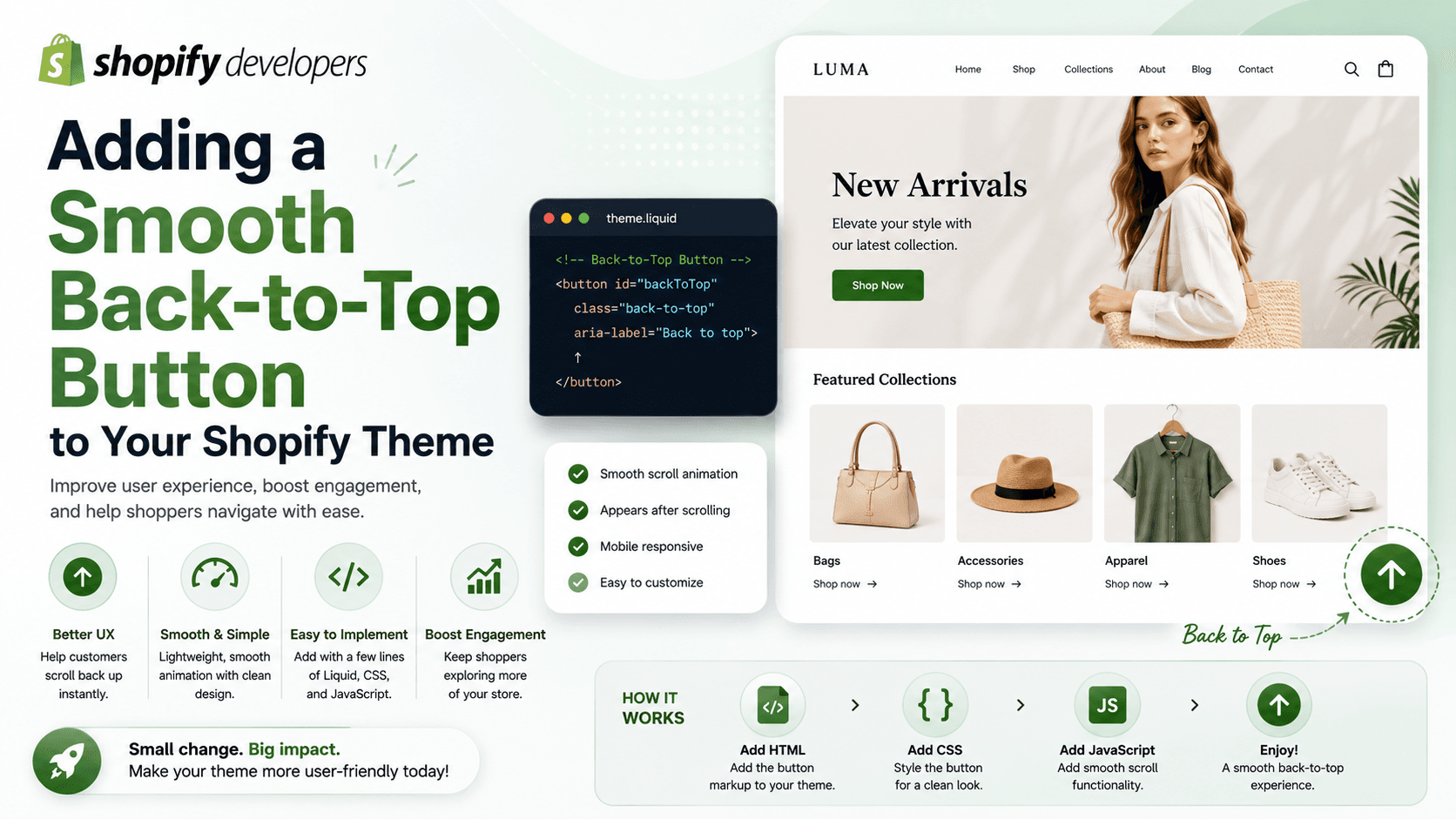

As a Shopify merchant or developer, you're constantly looking for ways to enhance your store's user experience and improve navigation. One often overlooked yet highly effective feature is the back-to-top button. In this tutorial, we'll guide you through the process of adding a smooth back-to-top button to your Shopify theme using lightweight CSS and JS.
Why You Need a Back-to-Top Button
A back-to-top button provides an easy way for customers to navigate back to the top of your webpage, especially on long pages with multiple sections. This feature can significantly improve the overall user experience, reducing bounce rates and increasing engagement. Moreover, it's a great way to enhance accessibility, particularly for users with mobility or dexterity impairments.
Step-by-Step Implementation
To add a back-to-top button to your Shopify theme, follow these steps:
1. Go to your Shopify admin panel and navigate to Online Store > Themes > Actions > Edit code.
2. In the code editor, click on the 'Assets' folder and add a new file called 'back-to-top.css'. Paste the following CSS code into this file:
.back-to-top { position: fixed; bottom: 20px; right: 20px; z-index: 1000; }
3. Next, create a new file called 'back-to-top.js' in the 'Assets' folder. Add the following JavaScript code to this file:
const backToTopButton = document.querySelector('.back-to-top'); window.addEventListener('scroll', () => { if (window.scrollY > 500) { backToTopButton.style.display = 'block'; } else { backToTopButton.style.display = 'none'; } }); backToTopButton.addEventListener('click', () => { window.scrollTo({ top: 0, behavior: 'smooth' }); });
4. Finally, add the back-to-top button to your theme's layout by pasting the following HTML code into your theme.liquid file:
<a href='#' class='back-to-top'>Back to Top</a>
Testing and Caveats
After implementing the back-to-top button, test it thoroughly to ensure it's working as expected. Check for any conflicts with other scripts or styling issues. If you encounter any problems, try adjusting the CSS or JavaScript code to resolve the issue.
When to Use an App Instead: While adding a back-to-top button using CSS and JS is a lightweight solution, there may be cases where using an app is more suitable. For example, if you need more advanced features, such as customization options or analytics, consider using a dedicated back-to-top button app like Scrolly or Scroll to Top Pro.
Conclusion
Adding a smooth back-to-top button to your Shopify theme is a simple yet effective way to enhance user experience and improve navigation. By following the steps outlined in this tutorial, you can easily implement this feature using lightweight CSS and JS. If you have any questions or need further assistance, feel free to ask in the comments below. Happy coding!