
Bulk Import Shopify Content Files from URL links

This tutorial will show you how to bulk import Shopify Content Files using URL links into your Shopify stores Content > Files section

Bulk Import Shopify Content Files from URL links
0 sections

This tutorial will show you how to bulk import Shopify Content Files using URL links into your Shopify stores Content > Files section with the Matrixify app. By preparing a simple spreadsheet with media links, you can quickly streamline your Shopify store’s Content Files upload in bulk.

Start by creating a new spreadsheet file (Excel or CSV format).

In your spreadsheet file add a column called “Link” in the first row. In the “Link” column, paste the direct URL links to your media files (images, videos, documents, etc.). These links must point to publicly accessible files, so Matrixify can download them.
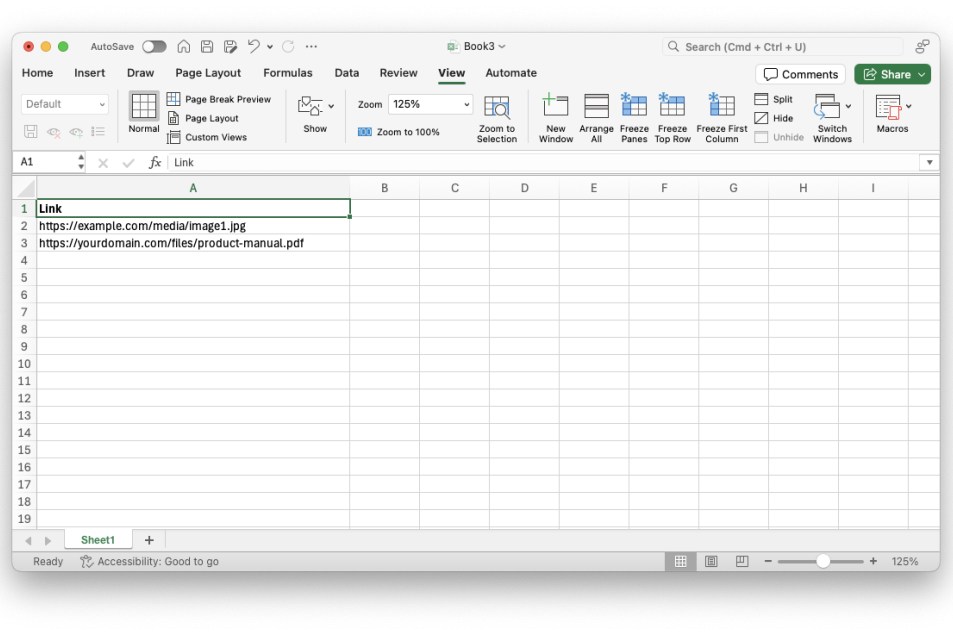
The link can also be an FTP/SFTP server link in the following structure ftp://username:password@server/path/to/file.jpg

2. (Optional) Add “File Name” and “Alt Text”

Optionally you can enhance your spreadsheet with additional columns:
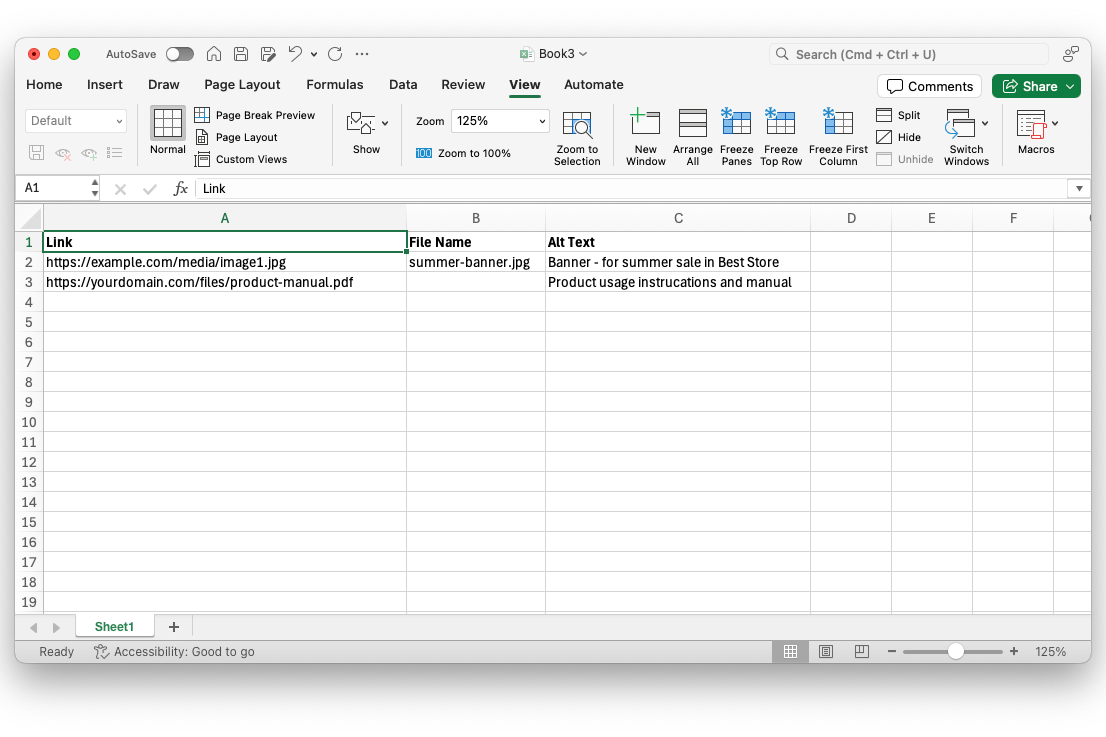
  • File Name – Specify the name you want the File to have in Shopify. You must also include the same file extension as the file returned by the link. If left blank, Shopify will use the original file name from the URL.
  • Alt Text – Add a short description to improve your Files SEO ratings.
  • Next, you’re ready to upload the file and let Matrixify bulk import everything into your Shopify store. Let’s move to Step 3!

    3. Import Shopify Content Files with Matrixify

    Head over to the Matrixify app within your Shopify Admin and upload your saved file to the Import section.

    Once uploaded, Matrixify will automatically analyze the file. Review the details to ensure the sheet is correctly detected as “Files” and that the item count looks correct, then simply start the import by pressing the “Import” button.
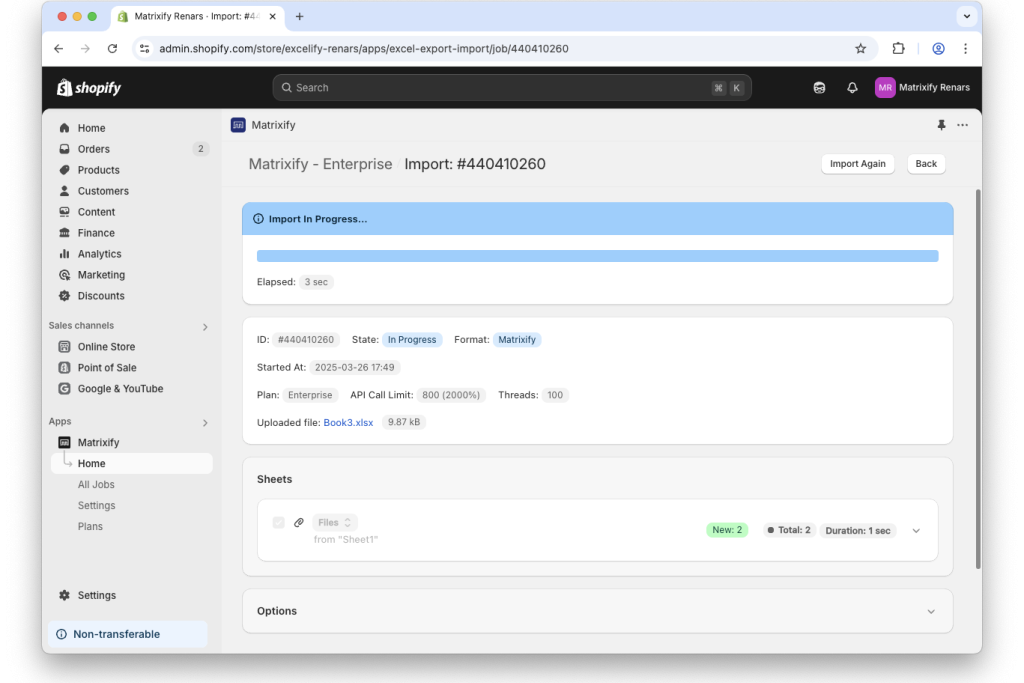
    Once the import is complete, all your media will appear in the Content > Files section of your Shopify Admin, ready to be used across your store wherever needed.


    Original guide here

    Tags
    Sources

    Related Articles

    Adding a Smooth Back-to-Top Button to Your Shopify Theme
    Tips & Tricks

    Adding a Smooth Back-to-Top Button to Your Shopify Theme

    Learn how to add a smooth back-to-top button to your Shopify theme using lightweight CSS and JS, improving navigation and enhancing user experience.

    August 13, 20263 min
    Shopify Requires Expiring Offline Access Tokens for Public Apps: What Developers Need to Know
    Tips & Tricks

    Shopify Requires Expiring Offline Access Tokens for Public Apps: What Developers Need to Know

    Shopify is making an important change to how public apps authenticate with the Admin API

    August 8, 202630 min
    Understanding Shopify Theme Check: LiquidHTML/Complexity
    Tips & Tricks

    Understanding Shopify Theme Check: LiquidHTML/Complexity

    Although this isn't a compilation or runtime error, it's an important indicator that your Liquid file has become too complex, making it harder to read, maintain, and extend over time

    July 30, 202620 min
    Migrating from PrestaShop to Shopify
    Tips & Tricks

    Migrating from PrestaShop to Shopify

    Migrating an e-commerce store from an open-source platform like PrestaShop to a hosted SaaS solution like Shopify is a common step for growing businesses looking to simplify store management and infrastructure overhead.

    July 24, 202615 min