
Connect GitHub to Shopify

Connecting GitHub to Shopify allows you to version control your theme code, collaborate with your team, and deploy changes smoothly

Connect GitHub to Shopify
0 sections

Why Connect GitHub to Shopify?

🔹 Version Control – Track changes, revert edits, and prevent code loss. 🔹 Collaboration – Work with multiple developers seamlessly. 🔹 Safe Deployment – Test updates before going live. 🔹 Automated Sync – Push changes directly from GitHub to Shopify. 🔹 Better Code Management – Keep Liquid, CSS, and JS organized.

Connecting GitHub to Shopify ensures efficiency, security, and smoother development. 🚀

Step 1: Set Up a GitHub Repository for Your Shopify Theme

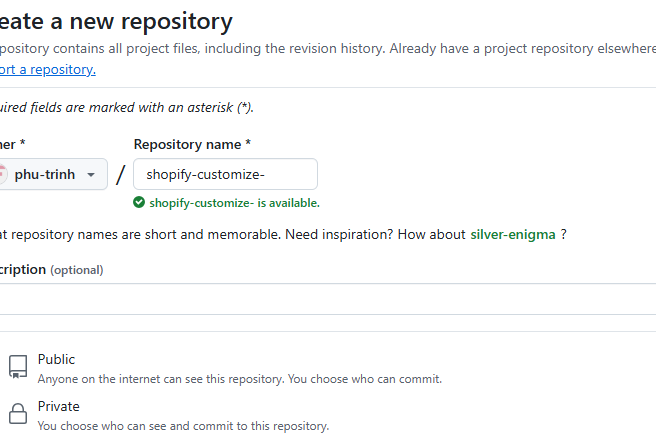
  • Go to GitHub and log in.
  • Click New Repository → Enter a name (e.g., shopify-theme).
  • Choose Public or Private, then click Create Repository.
  • Copy the repository HTTPS or SSH URL.
  • Step 2: Enable GitHub Integration in Shopify

  • Log in to Shopify Admin.
  • Navigate to Online StoreThemes.
  • Scroll down to the Theme Library section.
  • Click the Add Theme button.
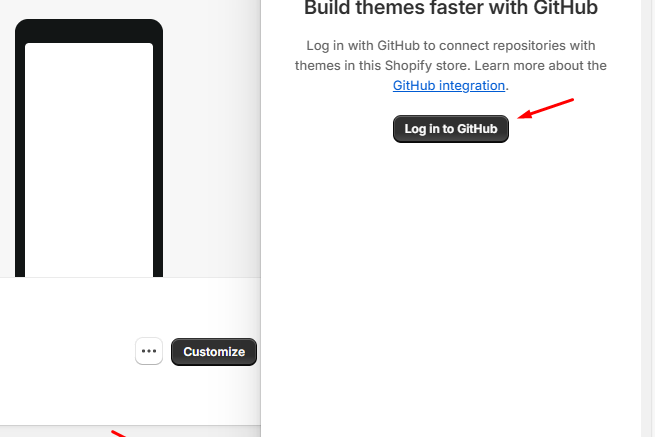
  • Select Connect from GitHub.
  • Authorize Shopify to access your GitHub account.
  • Select your GitHub repository and branch (e.g., main).
  • Click Connect to link your Shopify store to GitHub.
  • Step 3: Push Your Shopify Theme to GitHub

  • Clone your repository locally:
  • git clone https://github.com/your-username/shopify-theme.git
    cd shopify-theme
  • Download your theme code from Shopify using the Shopify CLI:
  • shopify theme pull
  • Add and commit your theme files to GitHub:
  • git add .
    git commit -m "Initial Shopify theme upload"
    git push origin main

    Step 4: Manage Your Shopify Theme with GitHub

    Make Changes Locally

  • Edit theme files in your local code editor (e.g., VS Code).
  • Save changes and push them to GitHub:
  • git add .
    git commit -m "Updated header section"
    git push origin main
  • Shopify automatically syncs changes from GitHub to your store.
  • Step 5: Create a Staging Branch for Safe Testing

    To test changes before deploying:

  • Create a new branch:
  • git checkout -b staging
  • Make edits and push the branch:
  • git push origin staging
  • In Shopify, switch to the staging branch for testing.
  • After testing, merge to main:
  • git checkout main
    git merge staging
    git push origin main

    Step 6: Roll Back to a Previous Version (If Needed)

    If a new update breaks the theme:

  • Find the last working commit:
  • git log
  • Revert to a previous version:
  • git revert <commit-hash>
    git push origin main
  • Shopify will update your theme automatically.
  • Final Thoughts

    Version control keeps your Shopify theme safe. ✅ Branches help with testing before deployment. ✅ GitHub integration makes Shopify development faster & organized.

    🚀 Now you can easily manage your Shopify theme with GitHub!

    Tags

    Related Articles

    Boost Sales Today: The Simple Power of Free Shipping Thresholds for Shopify Stores
    Tips & Tricks

    Boost Sales Today: The Simple Power of Free Shipping Thresholds for Shopify Stores

    Discover how implementing a strategic free shipping threshold can dramatically increase your Shopify store's conversion rates and average order value. Learn quick, actionable steps for both merchants and developers to set up and optimize this powerful tactic within a single day.

    May 16, 20266 min
    Boost Conversions: How to Add a Countdown Timer to Your Shopify Store
    Tips & Tricks

    Boost Conversions: How to Add a Countdown Timer to Your Shopify Store

    Learn how to add an urgency-driving countdown timer to your Shopify product pages and sales promotions. This tutorial covers methods from theme editor blocks to custom Liquid code and when to choose a dedicated app, helping you drive conversions.

    May 14, 20268 min
    Convert a Shopify Section to a Block (Horizon Theme version)
    Tips & Tricks

    Convert a Shopify Section to a Block (Horizon Theme version)

    In Horizon, Shopify allows developers to convert standalone sections into reusable blocks, giving merchants even more control in the theme editor. Let’s walk through the process step by step.

    May 10, 20267 min
    How to Add Tailwind CSS to Shopify
    Tips & Tricks

    How to Add Tailwind CSS to Shopify

    Learn how to add Tailwind CSS to Shopify for faster, responsive design. Enhance your store’s look with clean, utility-first styling. Perfect for theme customization

    May 10, 202615 min